Product Conditions
Product conditions categorize items based on their state, such as "New," "Used," or "Excellent" These labels appear in manifests, and listings, providing clarity on the item's status. Add New Conditions: Create custom condition labels that suit your business needs. Edit Existing Conditions: Modify condition names or descriptions to align with your terminology. Delete Conditions: Remove condition labels that are no longer relevant
Product Conditions can only be managed on the Web Platform, but will be available options to select in the mobile app.
Create Product Conditions
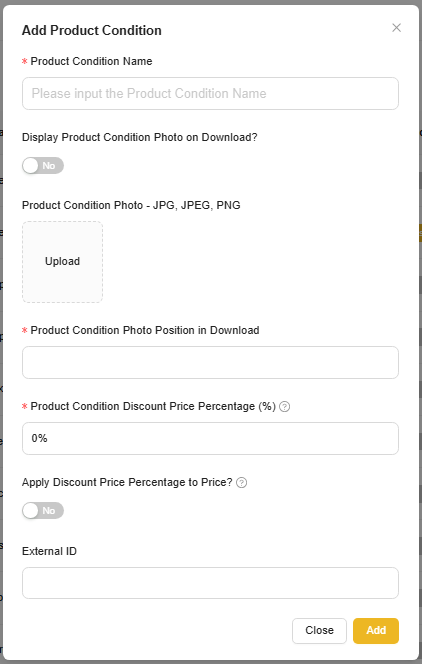
1. Select 'Add Product Condition'
2. This screen will appear and the fields are defined below
Edit Product Conditions
To Edit a Product Condition, select the 'Set Condition Settings' button
Product Condition Settings
Hide Product Condition
To hide a Product Condition, enable the switch in the Hide column if you no longer want to see/use that Product Condition
Auto-Assign Read Description Flag
To automatically enable the Read Description Flag based on Condition, enable the switch in the 'Read Description' Column
Set New Condition for Account
Setting 'New Condition for Account' will set that condition as the default when the user selects 'Print Label Only (Skip Photos & Conditions, Item Condition = New)?' in the Manifest options.
Delete Product Condition
manyfastscan Accounts are pre-loaded with standard conditions. At this time, these conditions cannot be deleted. However, you can simply 'Hide' these conditions as shown above. If you would like to delete a condition which you have created, simply click the trash icon next to the 'Set Condition Settings' Button
Related Articles
Condition Filter
Used to create account-specific filters for reviewing product data in the Review Product List (web Only) and Manifest pages (web & mobile). This allows you to create a reusable filter to search for items that contain/do not contain certain values or ...Scan Settings
Allows users to customize how the app handles item scanning, data entry, labeling, and pricing. These settings are designed to configure workflows for various use cases, including auctions, retail, ecommerce, pallet manifesting, and inventory ...Configuring Account Settings
Mobile Web Mobile Account Settings What Are Account Settings? Account Settings in the manyfastscan app controls behaviors and preferences across your entire team. These settings apply to all users on your account and are only visible to users with ...Download Settings
Format Settings Download Presets Download Field Options Download Field Types Using Variables in Download Fields Automated Image Edits Read Description Flag Lot Thumbnail Subtitle Download Samples Combine in Description Read Description Flag Lot ...View Settings
Controls which fields are visible and required in different parts of the system. This allows you to simplify workflows, enforce data standards, and tailor input screens to match your process. Each section defines attribute behavior during specific ...