Configuring Account Settings
Mobile
Web
Mobile
Account Settings
What Are Account Settings?
Account Settings in the manyfastscan app controls behaviors and preferences across your entire team. These settings apply to all users on your account and are only visible to users with Admin-level access.
From adjusting data behavior to managing pricing multipliers and enabling hidden features, these settings define how the system handles item scanning, pricing, and visibility.
SS Menu > General Settings > Account Settings
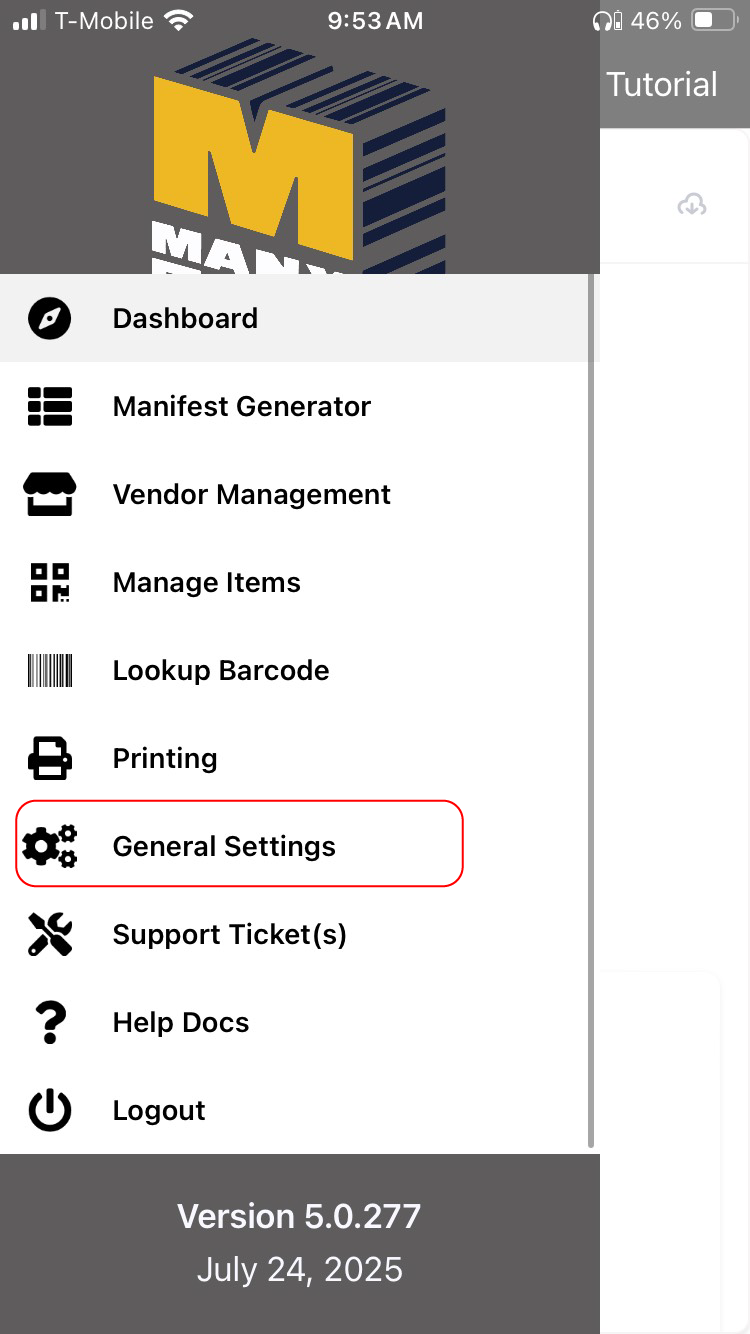
Step 1. Click on Account Settings.
Step 2. Review and become familiar with Account Settings below:
Explanation of settings above:
- Is Automatic Title Shortening Enabled? – Toggles on/off automatic truncation of item titles to a set character length.
- Title Shortening Length – Sets the maximum number of characters allowed in an item title.
- Item Addition Mode (Add Quantity / Force New Lot / Clear) – Determines whether identical scanned items add to an existing lot or always create a new lot.
- Show Hidden Manifest Groups – Shows or hides archived manifest groups in menus.
- Show Hidden Manifests – Enables visibility of previously archived individual manifests.
- Show Hidden Vendors – Displays vendors marked as hidden for reference or reactivation.
Explanation of each Account Setting Field
- Show Hidden Uploaded Manifests? – Displays manifests that were previously archived or hidden.
- Show Hidden Departments & Categories? – Reveals archived or hidden product departments and categories.
- Force Fresh Data on Manifest Item Addition (UPC/Item#)? – Always pulls the most recent product data from retailer sources when adding an item.
- Show Dashboard to Admins Only? – Restricts dashboard visibility so only admin-level users can access it.
- Premium Price Multiplier – Adjusts premium pricing (useful for covering fees such as credit card processing).
- Discount Price Multiplier – Sets a discount formula by multiplying the retail price with a chosen factor.
- Allow Numbers in Manifest Item Section Names? – Enables use of numbers in section naming (e.g., “Lot 102A”).
Explanation of each Account Setting Field
- Manifest Item Section Character Limit – Restricts the number of characters allowed in the “Section” field of a manifest item.
- Manifest Item Section Case Option – Forces section text to display in either uppercase or lowercase.
- Sort Bucket Listing Workflow (Do Not Wait / Wait) – Chooses whether to immediately continue scanning or pause until the MFS engine result is returned.
- Print Sort Bucket Item Label on Scan? – Toggles automatic printing of item labels when scanning into sort buckets.
- Vendor Order (Date Created ASC / Code ASC) – Determines how vendors are listed in menus, either by creation date or by vendor code.
Web
All settings configured here are applied to all users on the account. Only Account Admins will see this as an option.
The Account Settings page is divided into separate tabs. The definition of each field is in the below table
| Tab | Field | Description | Usage |
| Generic | Force Fresh Data on Manifest Item Addition | When this option is enabled, the app will fetch the latest product details, title, and description from the manyfastscan database. | This feature is useful when you want new information on a product pulled, instead of data previously used within the account. If a user changes the title of an item to "Broken Item" the next time that specific barcode is scanned, the data from the system will be returned with the title of the item being "Broken Item". When Fresh Data is enabled, the data will be pulled from the manyfastscan database and not include any previous modifications to title, description, price etc. |
| Show Dashboard to Admins Only | Restricts dashboard access to admin-level users. | ||
| Premium Price Multiplier | Allows you to adjust the pricing of items by applying a multiplier to the Discounted Sale Price. This feature is particularly useful for businesses that wish to add a convenience fee for credit card purchases for in-store retail use cases. Example | Retail Price = $200, Discounted Sale Price = $100, with a 3% premium, the Premium Price would be $103 | |
| Discount Price Multiplier | When enabled, this feature will set a discount off retail price for every item. Example | Discount BinStore ABC wants every item to be 40% off retail. Set the multiplier to .60 | |
| Default Auction Starting Price | Default Auction Starting Price to be used when creating a new Manifest Item | ||
| Default Auction Reserve Price | Default Auction Reserve Price to be used when creating a new Manifest Item | ||
| Retail Price Convert To Currency | The currency to which the Retail Price will be converted to | ||
| Item Addition Mode | Choose between Add Quantity (increment existing item) or Force New Lot (always create a new line item). | ||
| Allow Numbers in Manifest Item Section Names | Controls whether numerical characters are allowed in section labels. | ||
| Manifest Item Section Character Limit | Set the max number of characters allowed in section labels (e.g., 2). | ||
| Manifest Item Section Case Option | Set the section to Uppercase, or Lowercase | ||
| Sort Bucket Listing Workflow | Choose between Do Not Wait (faster listing) or Wait (pause for MFS engine processing). | ||
Title Shortening | Title Shortening Enabled | Summarizes and shortens titles to a specified character limit to match the requirements of whichever auction/ecommerce platform you are using. | Example: Hibid has a 50 character title limit. eBay is limited to 80 characters. AuctionWorx is limited to 80 characters. |
| Title Shortening Max Length | The maximum number of characters to be present in the title when Title Shortening is enabled | ||
| Hidden Manifests, Manifest Groups & Vendors | Show Hidden Manifests | Toggle visibility of individual hidden manifests. | |
| Show Hidden Manifest Groups | Allows Account Admins to control the default visibility of manifest groups that have been marked as hidden. When this toggle is enabled, these hidden manifest groups become visible in the list, allowing users to view or manage them as needed. Users will have the option to toggle show/hide functionality manually for their personal settings on their Manifest Group page. | This feature is particularly useful for users who need to reference or restore previously hidden manifest groups without permanently deleting them. This also allows Account Admins to force users to focus only on active Manifest Groups | |
| Show Hidden Vendors | Display or hide previously hidden vendor entries. | ||
| Show Hidden Uploaded Manifests | Controls display of uploaded manifests that are hidden. | ||
| Show Hidden Departments & Categories | Toggle the display of archived departments or categories in drop-down lists. |
Related Articles
View Settings
Controls which fields are visible and required in different parts of the system. This allows you to simplify workflows, enforce data standards, and tailor input screens to match your process. Each section defines attribute behavior during specific ...Download Settings
Format Settings Download Presets Download Field Options Download Field Types Using Variables in Download Fields Automated Image Edits Read Description Flag Lot Thumbnail Subtitle Download Samples Combine in Description Read Description Flag Lot ...Personal User Settings (App)
Personal User Settings (App) Manage your Personal User Settings, such as: First & Last Name Email Password or reset password Delete User Account Step 1. Tap the ☰ Menu > General Settings Step 2. Navigate to and tap on "Personal User Settings." Step ...eCommerce Settings
Shopify Integration eBay Integration Square Integration Clover Integration Navigate to the eCommerce Integration you want to enable. This will be a Native integration and be directly connected to your online storefront. For any integration not ...Scan Settings
Allows users to customize how the app handles item scanning, data entry, labeling, and pricing. These settings are designed to configure workflows for various use cases, including auctions, retail, ecommerce, pallet manifesting, and inventory ...