How to Download a Manifest Group/Manifest
How to Download a Manifest Group
This is a step by step process for downloading a Manifest Group for uploading onto your desired sales platform.
Step 1. Go To: manyfastscan.com > Manifest Generator > Manifest Group
Click on the "Download" icon for the desired Manifest Group.

NOTE:
You can also download a single Manifest using the same method. The Manifest Group will combine all Manifests in it.
Step 2. Start Download
- Download Everything (entire manifest group)
- Download Manifest with Photos
- Unless necessary, remain on Account Settings
- Click Download
Step 3. Watch Green Bar, your Download is Active.
Step 4. Wait for Green Bar to Complete and download progress switches to "Inactive". - Now click the "Download" icon above the Green Bar.
Step 5. When you click on the download bar your folders and files will download as a zip file to your computer.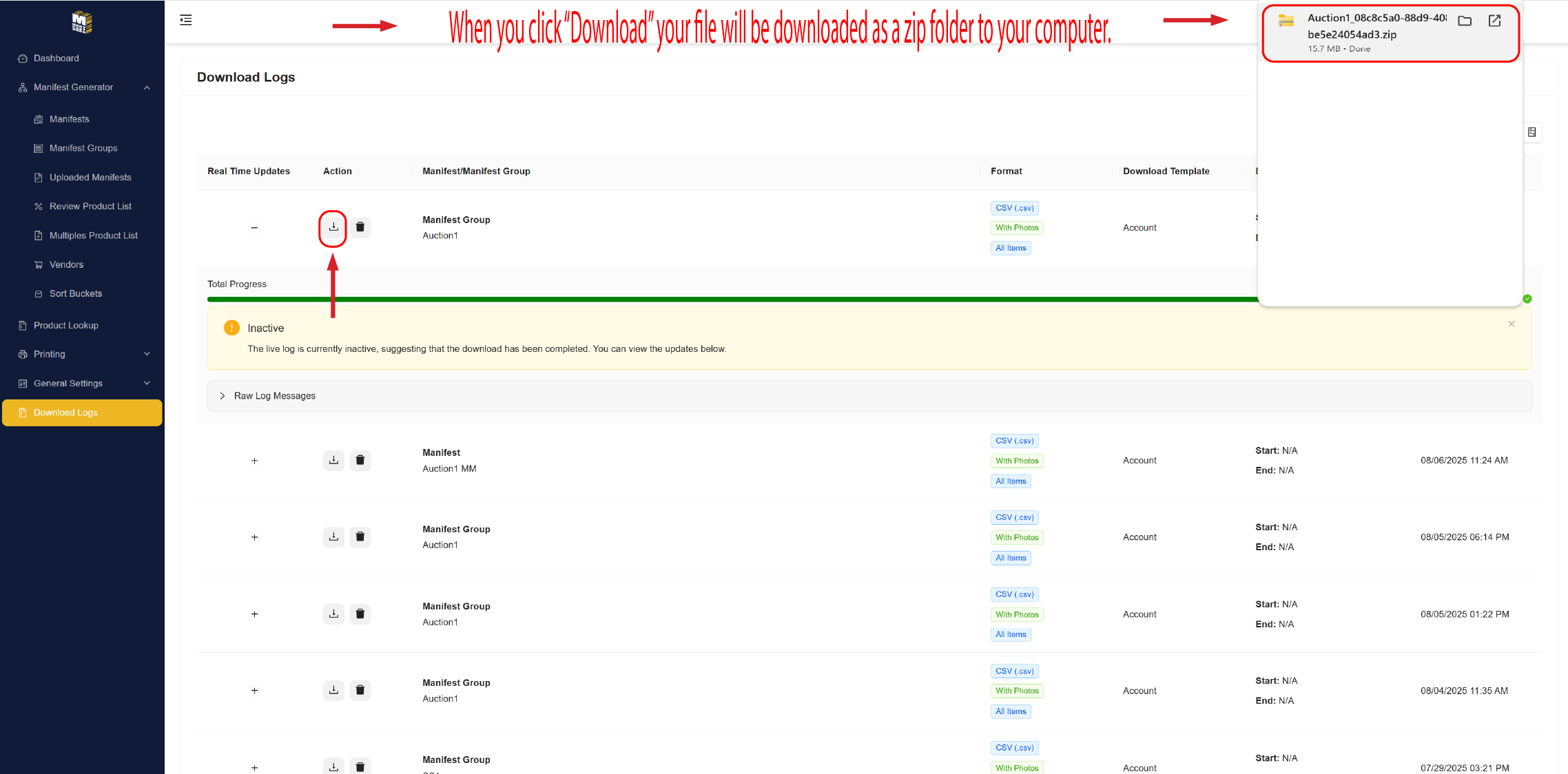
Step 6. Open the zipped file and extract all.
Note: If you are on a PC, you must extract the files, if you are on a mac it will auto extract.
Step 7. If on PC, Choose the location to extract your folders and files to.
Step 8. Congratulations, you have successfully downloaded your Manifest Group onto your computer, you are now ready to upload it to the desired sales platform.
Note: Our example showed a .csv(comma separated) file. If you need to change to a different file format that action is performed in your General Settings > Download Settings.
Related Articles
Manifest Groups
Manifest Groups are useful for grouping data Manifest Groups will ensure that no Lot# is duplicated between Manifests in the same Manifest Group When you Download a Manifest Group, the download process will combine all Manifests into one file Mobile ...Manifests
Mobile Web Mobile Create a Manifest Configure User Lot Ranges Edit Manifests Configure View Settings for Manifest Configure User Assignments for Manifest Hide Manifest Delete Manifest View All Manifests Filter Manifests Delete Manifests Special Note: ...Sort Buckets
Sort Buckets Menu > Manifest Generator > Sort Buckets What Are Sort Buckets? Sort Buckets are user-defined categories that help organize manifest items within a manifest group. Each bucket can be customized by name, color, and pricing rules (greater ...Review Product List (Web)
Review Product List (Web) Menu > Manifest Generator > Review Product List Overview The Review Product List page displays all items currently in your Manifests. This is for verifying, editing, and organizing product listings before exporting Manifests ...Vendor Management
Vendor Management What Is Vendor Management? The Vendor Management section allows users to create, manage, and organize sourcing partners in the manyfastscan mobile app. Vendors are attached to manifest items to track product origin, assist in ...