Vendor Management
Vendor Management
What Is Vendor Management?
The Vendor Management section allows users to create, manage, and organize sourcing partners in the manyfastscan mobile app. Vendors are attached to manifest items to track product origin, assist in reporting, and control catalog filtering.
Tracking Consignment Items
To track Consignors in an auction:
- Vendor Code references the ID the Consignor has in your Auction Platform
- Vendor Name is a readable name which the User creating a listing will see
First create the consignor in your Auction platform. The platform will provide an alphanumeric ID for the Consignor i.e 'MFS123' or '7654234' → this is your Vendor Code. When users are listing, they will see the name of the vendor → this is your Vendor Name i.e. 'manyfastscan'.
Tracking Trucks & Purchase Orders
To track Trucks & Purchase Orders in an auction:
- Vendor Code references the Purchase Order (PO#) related to your invoice/accounting.
- Vendor Name is a readable name referring to the truckload which the User creating a listing will see.
You can use a PO number or any unique alphanumeric text i.e 'MFS123' or '7654234'→ this is your Vendor Code. When users are listing, they will see the name of the Truck→ this is your Vendor Name i.e. 'manyfastscan HomeGoods July 4 Truck'
Mobile
Web
Mobile
Related*
Setting a Vendor to a Manifest as Default
Setting a Vendor to all items as Default
Enable/Require in View Settings
Add as a download Column in Download Settings
Related Links:
Create a Vendor
Step 1. Menu > Click on Vendor Management.
Step 2. Tap "+" Plus Sign, Upper Right Corner.
Step 3. Set a Vendor Code & Vendor Name.
Step 4. Tap "Create" at bottom of screen.
Edit a Vendor
Step 1. Tap on 3 Dot Menu in Vendor Box.
Step 2. Tap Edit Vendor.
Step 3. Edit Vendor Code and/or Vendor Name.
Step 4. Tap "Save" at bottom of screen.
Hide a Vendor
Step 1. Tap on 3 Dot Menu in Vendor Box.
Step 2. Tap Hide Vendor.
Step 3. Vendor is now Hidden.
Step 4. Tap "Show Hidden" to view hidden vendors.
Delete a Vendor
Step 1. Tap on 3 Dot Menu in Vendor Box.
Step 2. Tap Delete Vendor.
Step 3. Confirm Warning Box
Step 4. Vendor is Now Deleted. Note: This cannot be undone.
Reset a Vendor
Resetting a vendor code will create one vendor for all items in your Manifest.
Step 1. Tap on the Gear icon in the upper right hand corner of the Manifest screen.
Step 2. Select Reset Vendor Code
Step 3. Warning Message: This warning asks if you are certain you want to reset the vendor code for all items in your Manifest.
Step 4. Success Message: You will receive a success message confirming you have reset the vendor code for all items in your Manifest.
Web
Vendor Management - Web
Menu > Manifest Generator > Vendors
Overview
The Vendors section allows you to create and manage Vendor profiles for use in manifests. These profiles help you organize and track inventory sources truckloads, liquidation suppliers, retailers, etc.
Beta.manyfastscan.com > Menu > Manifest Generator > Vendors
Vendor Main Menu
beta.mananyfastscan.com > Menu > Manifest Generator > Vendors
This is your Vendor Main Menu. From here you can:
- View Vendors
- Edit Vendors
- Add Vendors
- Delete Vendors
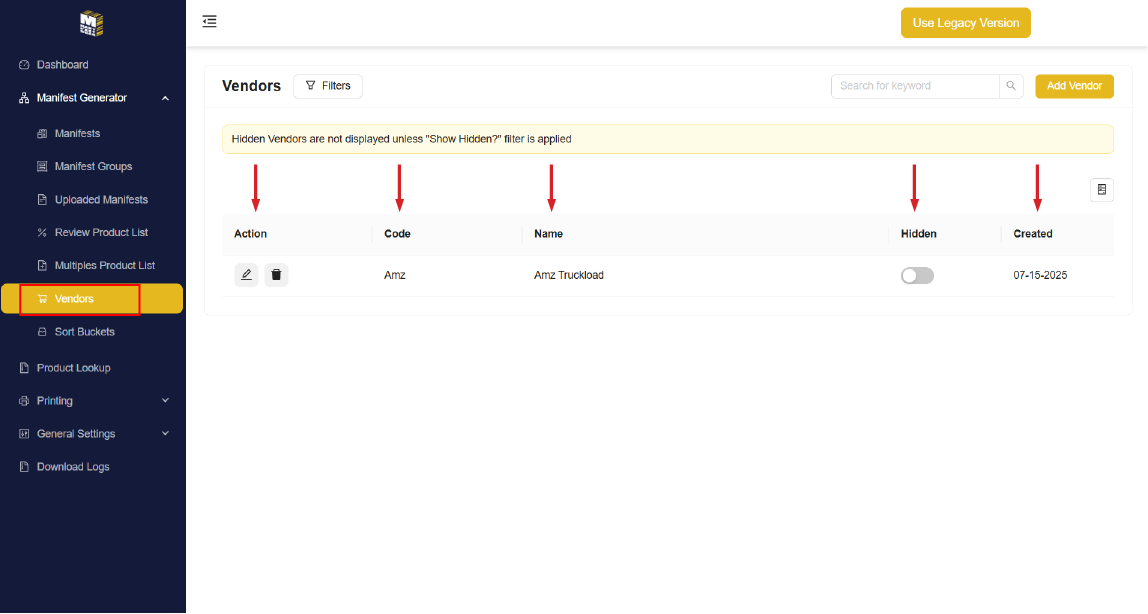
On each vendor you can
- Action: Edit or Delete
- View Vendor Code
- View Vendor Name
- Toggle Hidden on/off
- and View Date Created.
Step 1. Click "Add Vendor" in the upper right hand corner.
Step 2. Input Vendor Name, and Create a Vendor Code.
Step 3. Click "Add" in the lower Right hand corner.
Congratulations, you have now added a Vendor.
Edit a vendor
Menu > Manifest Generator > Vendors
To begin editing vendors, tap the  Edit Icon.
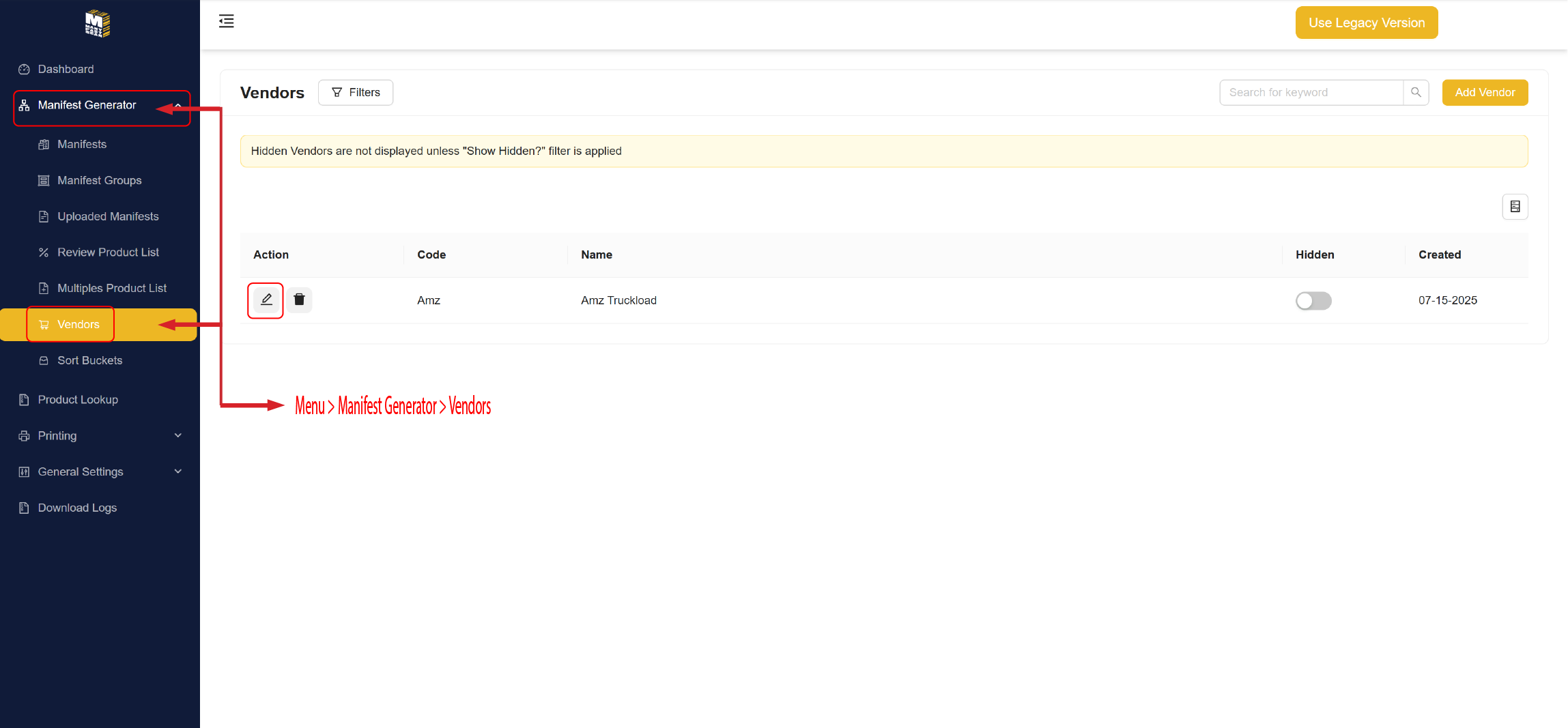
This will bring up your "Edit Vendor" Menu
- Edit Vendor Name
- Edit Vendor Code
- Click Save
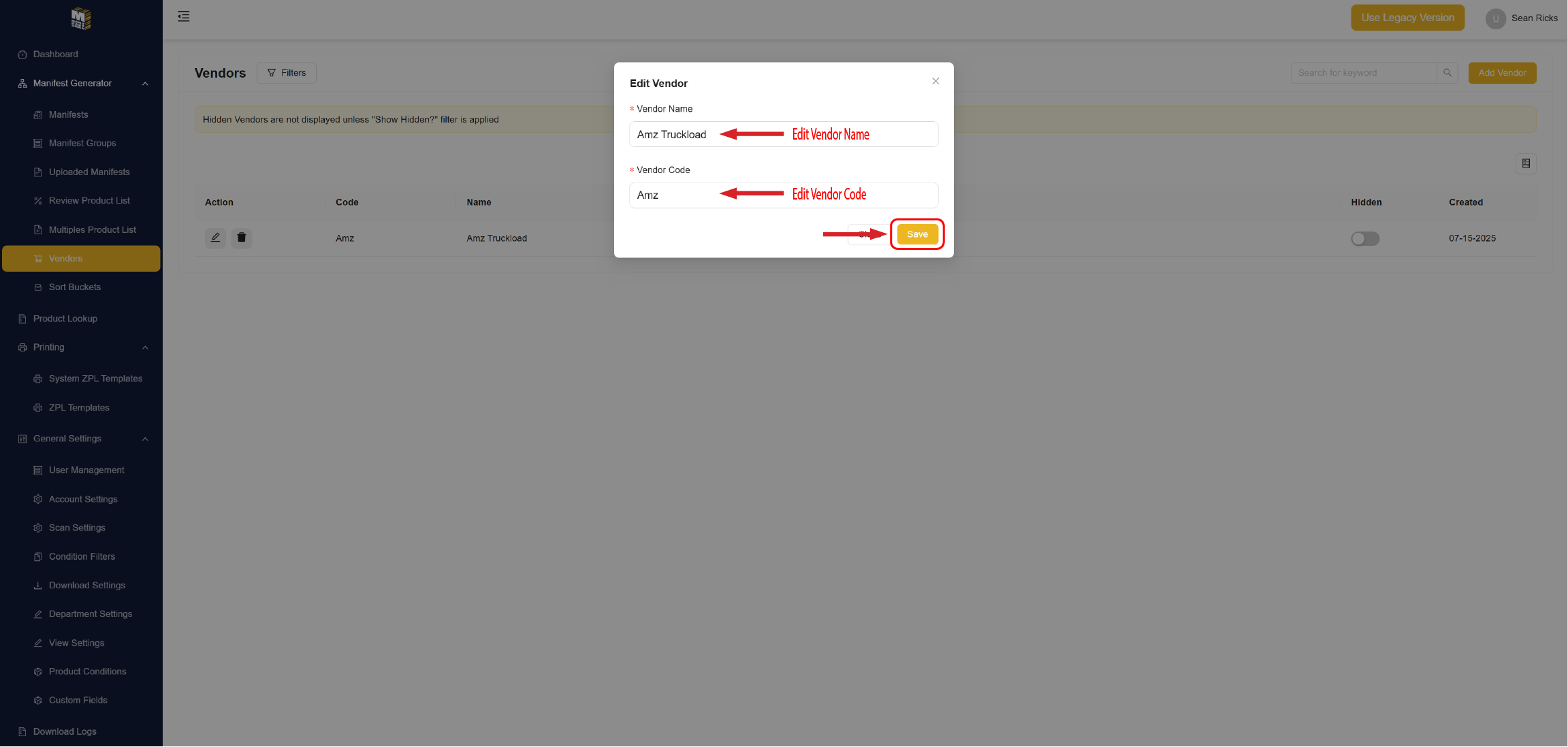
Congratulations, you have edited a Vendor.
Related Articles
Review Product List (Web)
Review Product List (Web) Menu > Manifest Generator > Review Product List Overview The Review Product List page displays all items currently in your Manifests. This is for verifying, editing, and organizing product listings before exporting Manifests ...Manifests
Mobile Web Mobile Create a Manifest Configure User Lot Ranges Edit Manifests Configure View Settings for Manifest Configure User Assignments for Manifest Hide Manifest Delete Manifest View All Manifests Filter Manifests Delete Manifests Special Note: ...