Review Product List (Web)
Review Product List (Web)
Overview
The Review Product List page displays all items currently in your Manifests. This is for verifying, editing, and organizing product listings before exporting Manifests or combining into a Manifest Group.
From here, you can:
-
Review lots, barcodes, quantities, titles, and descriptions.
-
Filter by Manifest Group or a specific Manifest.
-
Edit item details such as titles, descriptions, and quantities.
-
View or remove items using the action icons.
Manifest Group and Manifest Filtering
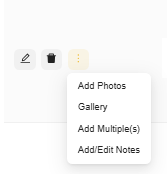
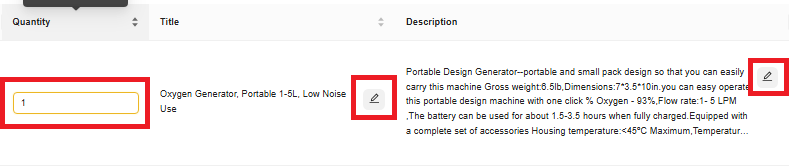
You can edit or delete from the pencil icon or click the Quantity, Title, Description, Retail, Discount Price or edit any values with a Pencil icon or a textbox/dropdown. etc.
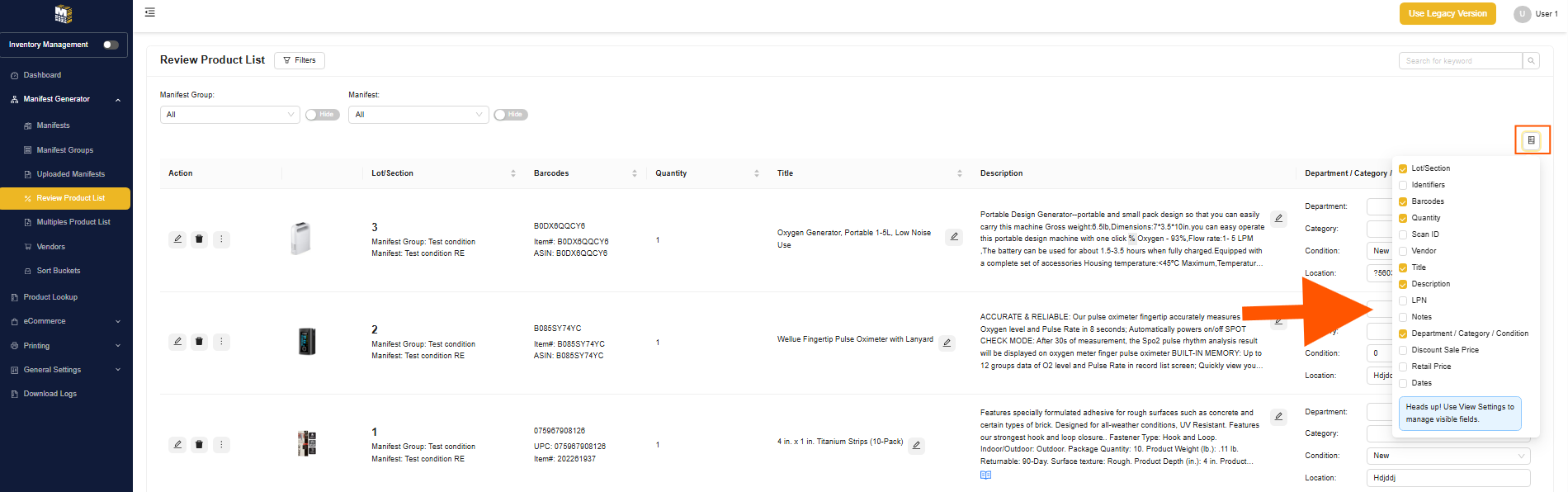
 Here is where you can select what fields you want to see. To adjust the available fields, go to 'View Manifest Item' in your General Settings > View Settings
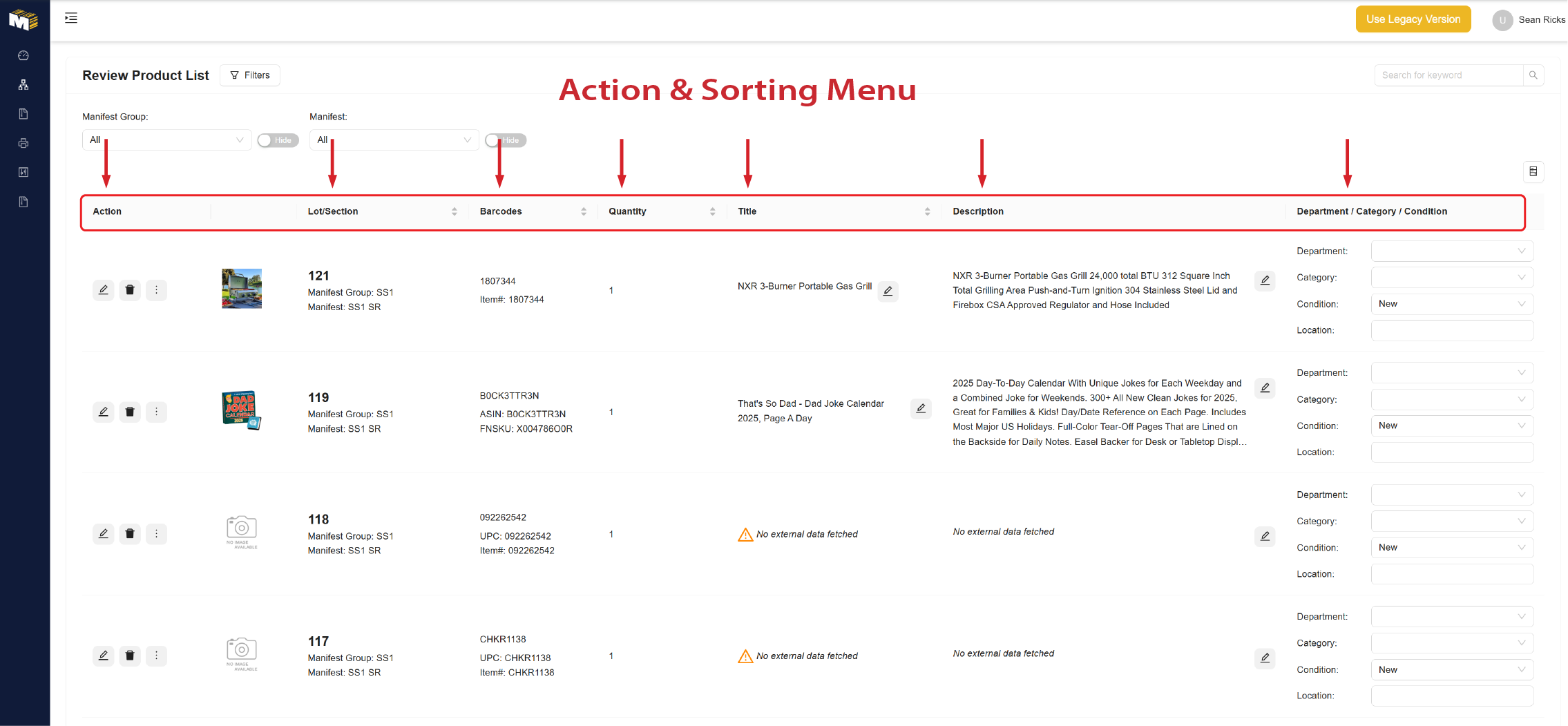
Action & Filter Menu - Familiarize yourself with the Action Menu above, and the Filtering for Each Column
Action Menu: Outlined Above.
Lot/Section Column: View and filter lots & section.
Barcodes: Your barcodes are outlined in alpha-numeric, they can be viewed here.
Display "Quantity" Column: View, filter and edit quantities of product listings.
Title: View, edit, and filter title information.
Description: You may view, edit, and filter descriptions here.
Department/Category/Condition: Create changes as necessary per product listing.
Action Menu: Outlined Above.
Lot/Section Column: View and filter lots & section.
Barcodes: Your barcodes are outlined in alpha-numeric, they can be viewed here.
Display "Quantity" Column: View, filter and edit quantities of product listings.
Title: View, edit, and filter title information.
Description: You may view, edit, and filter descriptions here.
Department/Category/Condition: Create changes as necessary per product listing.
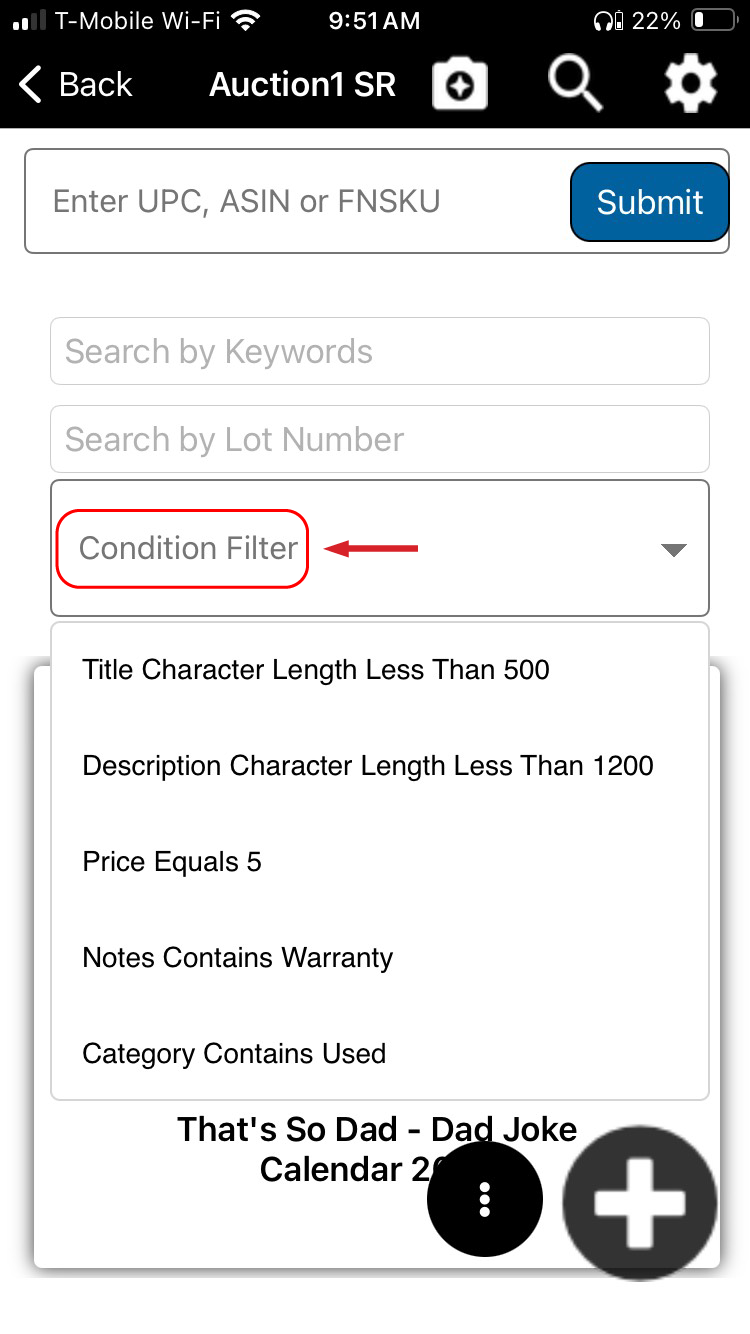
Condition Filter
Special Notes:
Condition Filters allow you to search throughout your Manifest for specific information. This is helpful when trying to find items that need attention by management before being listed live.
You can Also create Condition Filters by going to the related link article below.
Related Articles
Vendor Management
Vendor Management What Is Vendor Management? The Vendor Management section allows users to create, manage, and organize sourcing partners in the manyfastscan mobile app. Vendors are attached to manifest items to track product origin, assist in ...Sort Buckets
Sort Buckets Menu > Manifest Generator > Sort Buckets What Are Sort Buckets? Sort Buckets are user-defined categories that help organize manifest items within a manifest group. Each bucket can be customized by name, color, and pricing rules (greater ...Manifests
Mobile Web Mobile Create a Manifest Configure User Lot Ranges Edit Manifests Configure View Settings for Manifest Configure User Assignments for Manifest Hide Manifest Delete Manifest View All Manifests Filter Manifests Delete Manifests Special Note: ...Manifest Groups
Manifest Groups are useful for grouping data Manifest Groups will ensure that no Lot# is duplicated between Manifests in the same Manifest Group When you Download a Manifest Group, the download process will combine all Manifests into one file Mobile ...